Boot device not found – Internal Hard Drive.
Hello, Everyone. How to Fix the Error of No Boot Device Found. Today, I will explain. Let’s learn the solution to the problems of Hard Disk Not Recognized / Auto Disconnected from SATA Power, and the Data Cable is Broken or Failed.
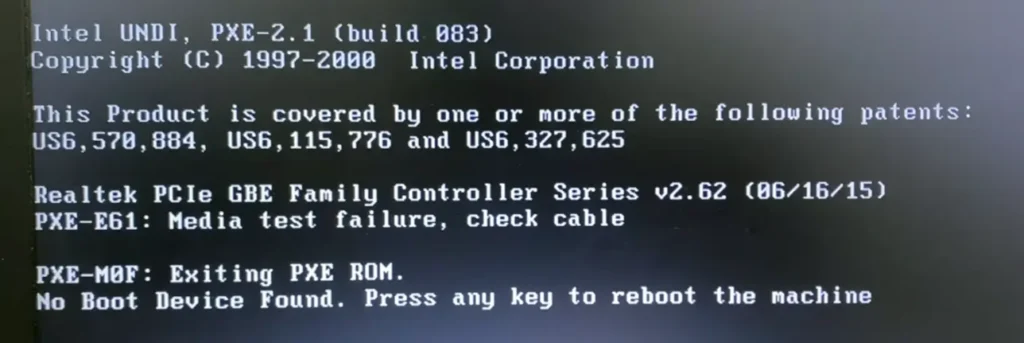
You need to repair your system’s Hard Drive to fix This Problem on Laptops or desktops. Please follow the Steps to Easily Fix Hard Disk Problems.
How To Fix Problem No Boot Device Found:
Can fix this problem by checking the BIOS settings in the computer.
To Restore BIOS Settings and to detect the Hard disk. Please follow Below process given below Step By Step.
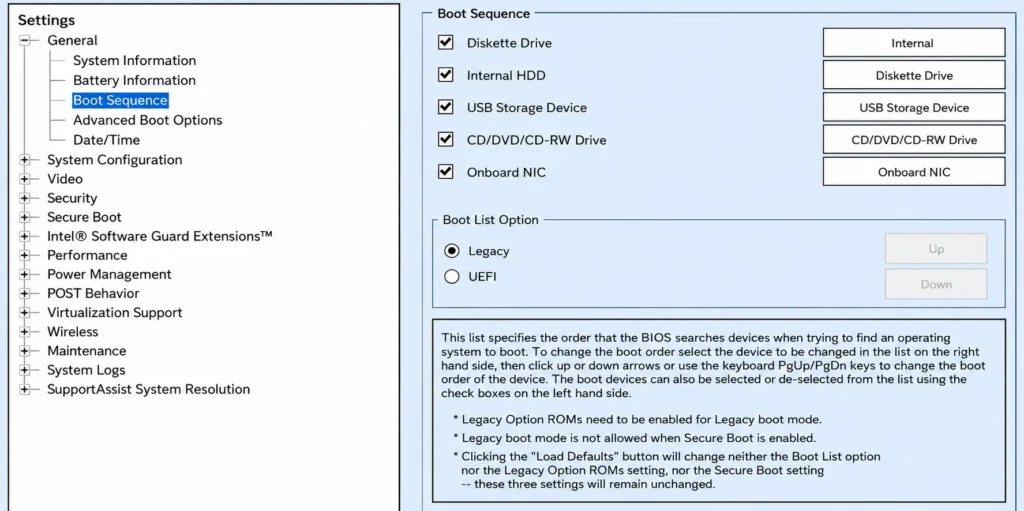
- Please Click On the Power Button To Turn Off the Computer To Continue
- The Next Step Is to Again Click On the Power Button
- Now, Click On the F10 Button More Times to Enter BIOS Settings
- Menu with Version Different Keys Need To Click Like F12, F11, F9, F2…
- Next Step: Go to BIOS Settings Menu Now, Click On the F9 Key To Open And Load BIOS Setup Default Settings
- Next Process Again Need To Click On F10 Button To Save Default Settings, And Now Exit
- In the Next Dialogue Box, Save Change Yes Or No Using the Arrow Key
- Select Yes, and Click the Enter Button. Exit and Save Changes
- Restart Your Computer After restarting.
- You Didn’t Show Any Popup Messages. You’re Computer Is Successfully.
- or you can see any pop-up message you need to follow the steps below.
Test Hard Drive Disk Using Computer Hardware Diagnostics Option:
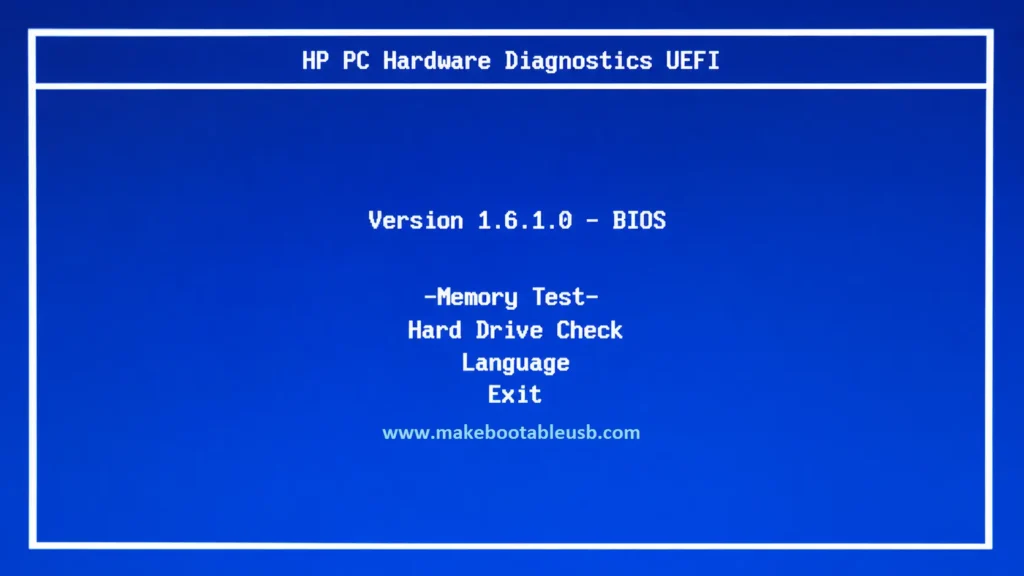
- Need to test the Hard Drive Disk Working properly.
- First Of All, Turn On Your Computer And plug in an AC Adapter to the Computer.
- Press The Power Button (Up To 3-5 Seconds) To Turn OFF the Computer
- Next, Press the Power Button To Start the Computer And Press the ESC Button Every Second to See the Menu. Now Press F2 Key
- Now You Can See the Diagnostics Menu Appears with Some Options And Select Components Test
- Next Dialogue Box: Select Hard Drive. After Selecting, You Can See More Options. Select Quick Test
- Next Process, Click on Run Option one, Now Hard Drive Test.
- Will Run After completion. You Can See the Test Successfully. You are the Drive Problem. Not Solved Check Steps Again, Or Put New Drive.