First, you need to understand why the nozzle check is primarily used. Let me explain to you the procedure of how to Nozzle Check in Windows 10 (Epson). It can be used in Epson ink tank printers when there are lines appearing on the printout or when there is missing print. Alternatively,
It becomes visible in the system when the Epson driver software is installed.
Let’s learn today when and how to use the nozzle (check) function.
Why use Nozzle check? What are the benefits?
Using this, we can see how the printing is coming out and whether we are missing lines.
This is the same process whether it is in Windows 10, Windows 11, Windows 8, or Windows 7.
How to nozzle check Epson L3210?
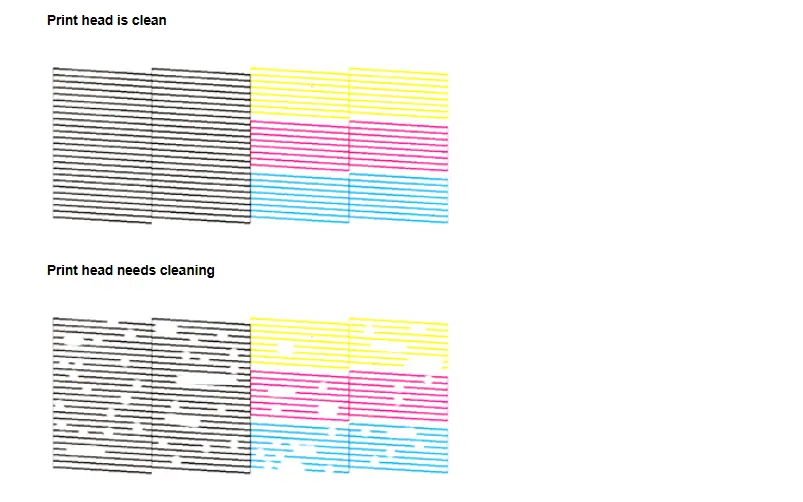
Nozzle check is recommended epson l3210
What should we do if we get a printout with missing lines?
Print Head Clean and Power Cleaning?
Print Head Clean should be done; it takes 3 to 5 minutes, but if we do not get the print properly.
We should do Power Cleaning, which takes 5 to 10 minutes; another thing is that ink is also expensive.
It should be calculated and should not be done repeatedly.
After doing this, check the nozzles and see if the print does not print properly, identify the head condition problem.
You will have to clean manually or replace the head.
How will you test nozzles?
- Open Control Panel
- Find Devices and Printers (Top Right > View by: Large Icons)
- Open Devices and Printers
- Click on the Installed Printer driver Exp: Epson L3210.
- Right Click 3rd Option is “Printing Preferences.”
- Go to “Maintenance Tab
- See left side “PRINT Head NOZZLE CHECK.”
- Then, run it > You will get the Print Option on the Screen.
Use the nozzle check utility.
When we get lines in printing, we should use (also working the same steps)
Install Printer Driver (Download from Epson’s Official website). Google Search using.
You installed it once done, then follow these steps:
Nozzle Check EPSON L3210 with computer
How to hard clean epson l3210 without PC
FAQ: